Start with a single letter.
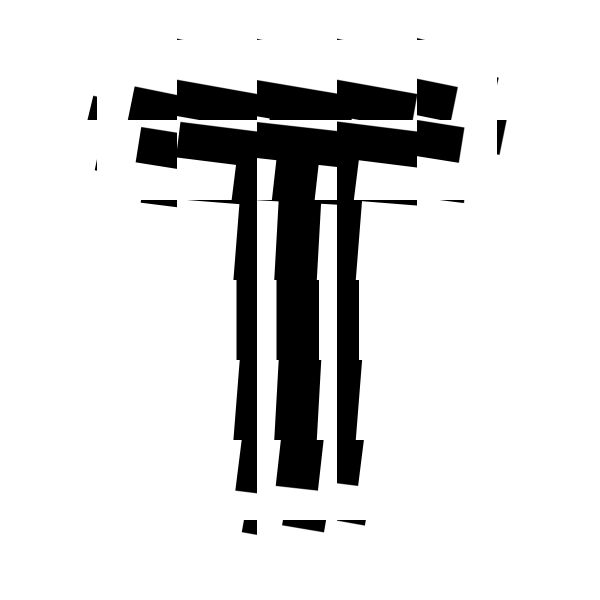
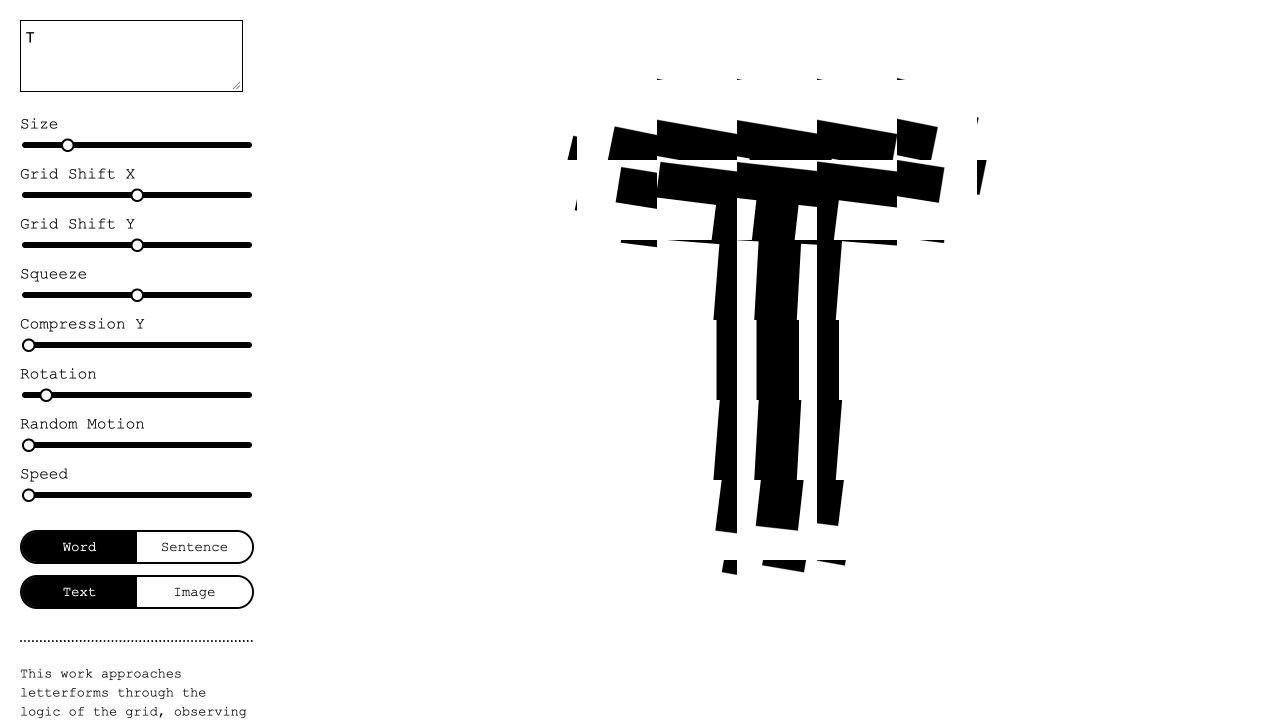
Open Pattern on a desktop browser. The text box and controls sit on the left; your artwork appears on the right. Replace the starting A with a bold, simple letter such as T, R, or O. Leave Text and Word selected for a large composition.
Try Sentence for smaller type and longer text. Press Enter in the text box to add a line break. To work with a picture instead, select Word, then Image and choose a file. Select Text to return to your lettering.
Change one thing. Watch what happens.
Begin with Size, then move Grid Shift X and Grid Shift Y to change how the fragments line up. Keep Random Motion and Speed at the left while you find a shape you like.
| Control | What it changes |
|---|---|
| Size | The size of your text or image. Reduce it if the composition spills beyond the canvas. |
| Grid Shift X / Y | The horizontal and vertical offsets of the artwork inside neighboring grid cells. Try the sliders separately. |
| Squeeze | Vertical stretching or compression, strongest near the center. The middle is neutral. |
| Compression Y | Increasing vertical compression toward the outer fragments. |
| Rotation | Progressively more rotation farther from the center. A small move can change the whole letter. |
| Random Motion | How far the fragments move. Pair it with Speed to animate. |
| Speed | How quickly motion advances. Move fully left to freeze the current moment. |

For movement, raise Random Motion a little and then raise Speed. Both need to be above zero for visible motion. Return Speed to zero to pause; return Random Motion to zero to remove the movement offsets.
Keep a still you like.
The current editor has no built-in download or export control. For a still, freeze the composition with Speed at zero, then take an area screenshot of just the artwork. Leave the controls outside your selection.
Shift + Command + 4
Drag a rectangle around the artwork. The screenshot is saved to your configured screenshot location.
Windows + Shift + S
Choose a rectangular snip. Open it in Snipping Tool and save the image.
Keep some white space around the letter and save a square crop. Use PNG for crisp edges, or an optimized WebP for the web. Name your image pattern-art.png and keep it at least as large as its displayed size; use roughly twice that size when possible for sharp high-density screens.
Give the artwork a job.
Here is a fictional design studio homepage using the captured T as its hero artwork. The graphic gives the page character; the headline, description, and link stay as readable HTML. Try the mobile view to see the artwork stack below the copy.
Keep the words readable.
Place the artwork next to your headline. Don’t bake essential text into the image.
Let the letter breathe.
Use a contained image with white space so the fragments stay visible at every screen size.
Match the background.
On this light background, multiply blending lets the white capture blend into the warm page color.
Use it on your own website
Download the starter, unzip it, and open index.html in your browser. It includes the example image and a complete page. Replace the artwork, studio name, copy, and projects with your own.
For an existing website, copy the HTML and CSS below. Put your capture beside the HTML file and update src to its filename; the starter uses pattern-art.jpg. In a React project, put the image in public, use src="/pattern-art.png", and change class to className.
<section class="pattern-hero" aria-labelledby="hero-title">
  <div class="hero-copy">
    <p class="eyebrow">TYPE STUDIO / INDEPENDENT DESIGN</p>
    <h1 id="hero-title">Make a little noise.</h1>
    <p>Thoughtful identities for people doing things differently.</p>
    <a class="hero-link" href="#work">Explore our work ↗</a>
  </div>
  <!-- Decorative artwork; the heading remains real HTML text. -->
  <img class="pattern-art" src="./pattern-art.jpg"
       alt="" width="600" height="600" fetchpriority="high" />
</section>

<section id="work" class="work-section">
  <h2>Selected work</h2>
  <p>Add your projects here.</p>
</section>.pattern-hero, .pattern-hero * { box-sizing: border-box; }
.pattern-hero {
display: grid;
grid-template-columns: 1fr 1fr;
align-items: center;
gap: clamp(24px, 5vw, 64px);
padding: clamp(24px, 5vw, 72px);
background: #f3f1e9;
color: #20211c;
font-family: Arial, Helvetica, sans-serif;
}
.hero-copy { min-width: 0; }
.eyebrow { font-size: 11px; letter-spacing: .12em; }
.pattern-hero h1 {
font-size: clamp(42px, 6vw, 88px);
line-height: .98;
letter-spacing: -.06em;
margin: 28px 0 24px;
}
.hero-copy > p:not(.eyebrow) { max-width: 30ch; line-height: 1.7; }
.hero-link {
display: inline-flex;
padding: 14px 20px;
margin-top: 18px;
border-radius: 999px;
background: #d5ef65;
color: #20211c;
text-decoration: none;
}
.hero-link:focus-visible { outline: 3px solid #426524; outline-offset: 4px; }
.pattern-art {
display: block;
width: 100%;
height: auto;
object-fit: contain;
mix-blend-mode: multiply;
}
.work-section { padding: 40px; font-family: Arial, sans-serif; }
@media (max-width: 680px) {
.pattern-hero { grid-template-columns: 1fr; }
.pattern-art { max-width: 420px; justify-self: center; }
}The empty alt="" marks this T as decorative because the real heading explains the page. If your artwork communicates information, give it meaningful alt text. Use a light background for the blending effect, or remove mix-blend-mode to keep the image’s white background.