

Pick your favorite template.
Open Book of Shapes and scroll down to the pattern gallery. Explore categories such as Grid, Radial, and Flow, or switch between Recent and Popular. Click a pattern to open its controls.
We’ll use Spiral Morph for this walkthrough. It starts as a mesh that you can bend into a spiral. Choose the same template to follow the settings below.

Change your settings. Beep beep boop.
Move one slider at a time and watch the preview. In Spiral Morph, Cols and Rows change the mesh density. Morph blends the grid toward a spiral, while Turns changes how tightly it winds.
Try Rows 20, move Morph down and back up, then try a different Turns value. Our final look uses these settings:
- Cols / Rows
- 30 / 20
- Morph
- 0.75
- Turns
- 5.5
- Radius
- 300
- Noise Amt
- 0.37
- Noise Scale
- 0.0
Like a version? Use Save variation when it appears, or export it before experimenting again. Reset to defaults gives you a fresh starting point.
Take the SVG with you.
Choose the Download SVG icon—the downward arrow above the pattern, between Share and the Figma icon. Our download arrived as a ZIP containing two SVG versions and LICENSE.txt. Unzip it to get the files, and keep the license with your artwork.
An SVG is a vector file, so you can resize the pattern without turning it into a blurry image. Bring it into your design app for a cover, background, or composition. The adjacent Copy for Figma button is another option if you’re working in Figma.

Or turn it into a poster.
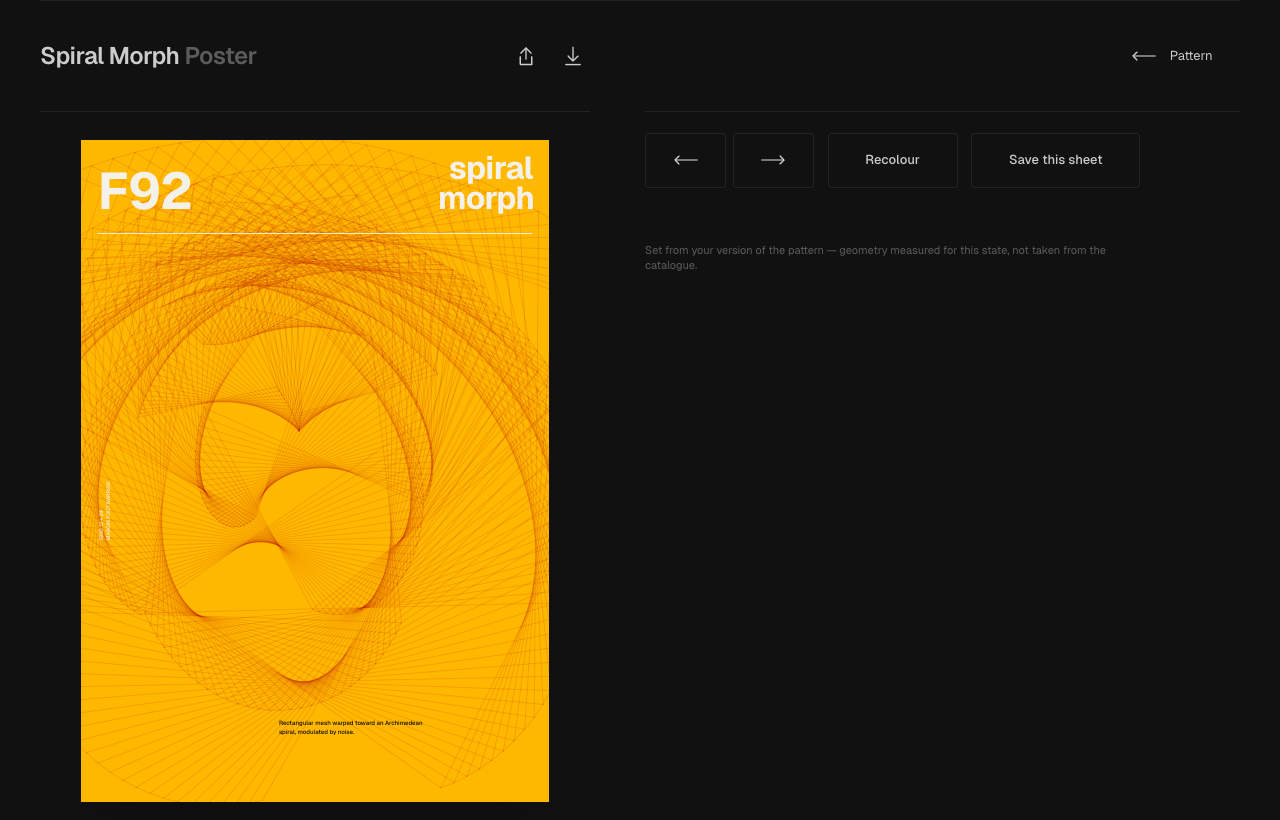
Scroll below the pattern controls and choose Make a poster. It carries your tuned pattern onto a typographic sheet. Use Next sheet and Previous sheet to explore layouts, then choose Recolour to try another palette on the same sheet.
Use Save this sheet to keep a favorite in your browser, or the poster’s Download SVG button to save a file. The Pattern link takes you back to the pattern editor. There you go—a poster from a few small tweaks.