
Find your kind of movement.
Open the playground and choose a state on the left. Focus gives the orb most of the canvas. Switch to Compare to see the nine animations together, then select one to get a closer look.
- Working
- Particles following their own little orbits.
- Searching
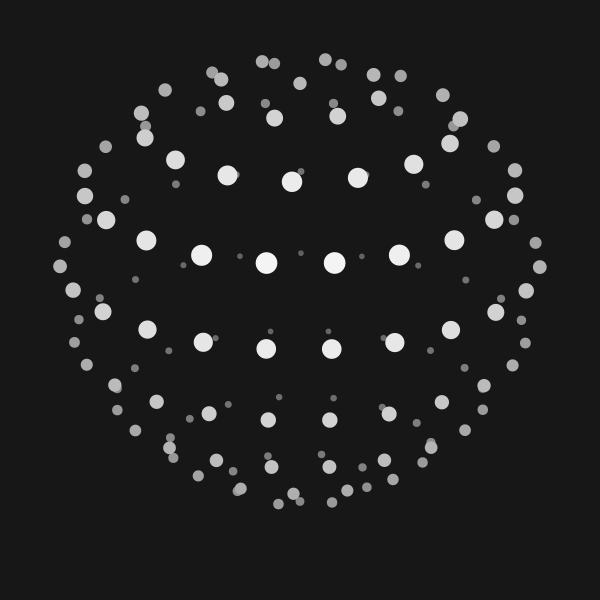
- A scan sweeping across a dotted globe.
- Solving
- Bands scrambling, then finding their place.
- Listening
- A waveform rolling through rings.
- Connecting
- A constellation finding its connections.
- Weaving
- Three strands plaiting around a sphere.
- Composing
- A ribbon that keeps taking shape.
- Breathing
- A soft ring expanding and shifting.
- Shaping
- A circle, triangle, and square in motion.
These are visual states. Your app decides when to show each one.
Make it feel right.
Slow it down or speed it up. Try the grey-and-white dark theme, or switch to light. Pause when you want to study a shape, and use fullscreen for a closer look.
- Speed
- Changes the animation pace, from 0.1× to 3×.
- Scale
- Magnifies the preview from 30% to 150%. It does not change the size in your copied code.
- Detail
- Choose the 64 px detailed preset or the 20 px compact preset. This is the size included in your code.
- Theme & pause
- Your light or dark choice and paused state are included in the snippet too.
Give the cursor a little Gravity.
Turn Gravity on and move your mouse or trackpad pointer near the orb. The cursor bends toward it while its click position stays in place. Try this in Focus view on a desktop.
The copied code updates to include gravity={{ sprite: arrowCursor }}. It also switches to the included Gravity component and cursor imports.
Download the helpers too. Unzip them and place the gravity folder beside the component where you paste your snippet. The supplied adapter works with thinking-orbs@0.3.1, which does not include Gravity on its own.
Gravity uses a desktop pointer and switches off when reduced motion is enabled. Touch users can still explore every orb animation.
Copy it. Make it part of your site.
Once you like the result, choose Copy JSX in the playground. The snippet follows your selected state, detail, theme, speed, pause, and Gravity settings.
For a React project, install the version used in this playground:
npm install thinking-orbs@0.3.1Put the import at the top of your component file and the orb inside its returned JSX. Here is a simple example with Gravity off:
import { ThinkingOrb } from 'thinking-orbs';

export default function Orb() {
  return (
    <ThinkingOrb
      state="listening"
      size={64}
      theme="dark"
    />
  );
}
Working with an AI coding assistant? Paste your copied snippet with this prompt. If Gravity is on, attach the downloaded helpers as well.
Add the Thinking Orb from the snippet below to my React project. Install thinking-orbs@0.3.1 and preserve the settings in the snippet. Keep the orb on a background that suits its selected theme, and give its status a useful text label.

If the snippet uses Gravity, use the attached helper files and keep their relative imports working. If this is a Next.js App Router project, put the interactive orb in a client component.

Here is my snippet:
[Paste the code copied from the playground here]