

Dither it guide
THE CREATIVE TOOLKIT / DITHER IT

Small pixels.
Big personality.

Take a photo. Lose a few colors.
Find a whole new feeling.

Open Dither it (opens in a new tab)4 steps · 3 short recordings · Free browser tool
ANALOG FEELING, DIGITAL DOTS001
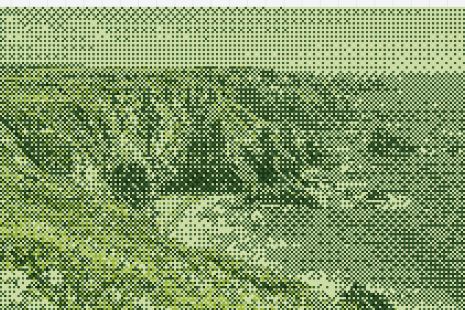
A rugged coastline rendered as green pixel patterns using Dither it’s Game Boy palette.
POSTCARD FROM A PIXEL COAST

Dither it turns images into patterns made from a limited set of colors. The dots suggest shades that aren’t actually in the palette. Think old computer graphics, printed textures, and a photo with a little more character.

YOU’LL MAKEA retro photo treatmentNo code or account needed for this walkthrough.
SAME COAST. DIFFERENT MOOD.

A little less color.
A lot more texture.

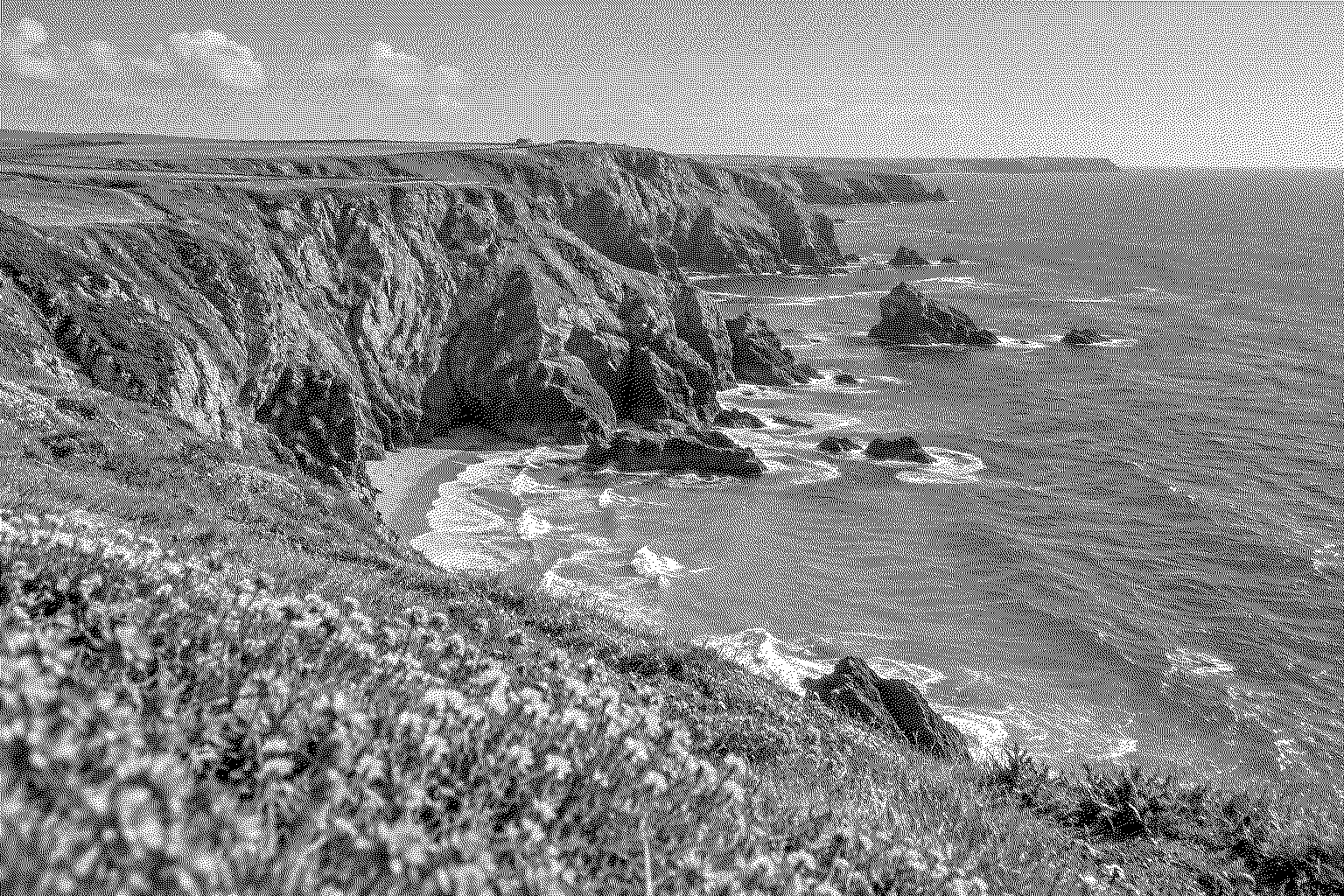
Move the slider to compare the original with a two-color Floyd-Steinberg result. Every apparent shade of gray comes from black and white pixels.

The coastal photo converted to a black-and-white pattern of small dots.
Original color photo of cliffs, blue sea, and yellow wildflowers.
01

Start with a photo you like.

Open ditherit.com. Drop an image onto the editor, paste one, or use Select. Once an image is loaded, Add image lets you bring in another. Select its thumbnail to work on it.

A clear silhouette, a face with distinct lighting, or a landscape with light and dark areas makes a useful first experiment. Tiny details can disappear as the pixels get larger.
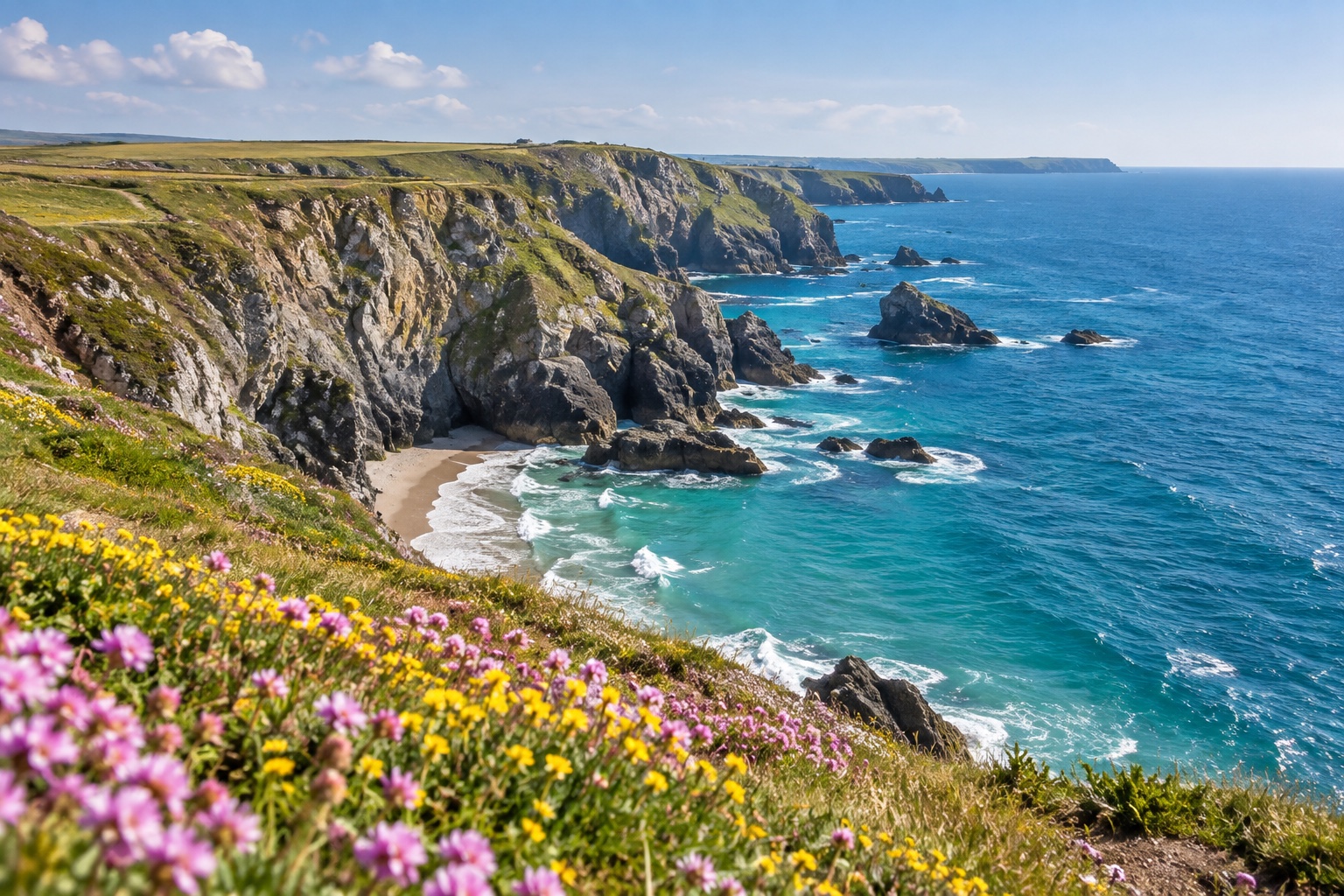
The undithered sample: blue sea beneath rocky cliffs with yellow wildflowers in the foreground.
FOLLOW ALONG

Borrow our little coastline.

This AI-generated sample is the starting image used throughout the guide.

Download sample JPG ↓
02

Pick a palette. Change the mood.

In Palette → Presets, choose Black & White for a simple first pass. Leave Dither Mode on Error Diffusion and Algorithm on Floyd-Steinberg. This spreads the tonal detail into a fine, irregular dot texture.

Choose Compare below the image to see the original beside the result. Drag the divider across the preview to inspect a particular area; choose Compare again to return to the full result.

Watch: choose a palette and compare11 SEC · SILENT
Recorded in Dither it. Enable captions for the steps.Download video ↓
Read the walkthrough

The coastal image starts with Original (from image) selected. Open Presets and choose Black & White. Wait for the result, then choose Compare beneath the image to see the original and the dithered version side by side.

03

Find your kind of dots.

Switch Dither Mode to Bayer (Ordered). With Matrix Size at 4x4, the texture becomes a regular repeating pattern. Compare it with Floyd-Steinberg on the same photo before changing anything else.

Then raise Pixel Scale from 1x to 2x or 3x. Larger pixels make the pattern more visible and the image more abstract. If a face or small object stops reading clearly, bring the scale back down.

Watch: switch the pattern and pixel scale12 SEC · SILENT
Recorded in Dither it. Enable captions for the steps.Download video ↓
Read the walkthrough

Start with Error Diffusion, Floyd-Steinberg, and Black & White. Open Dither Mode and choose Bayer (Ordered). Keep Matrix Size at 4x4. Increase Pixel Scale from 1x to 2x, then 3x, and watch the pattern become coarser.

01 / FINE GRAIN

Photo, with texture.

Error Diffusion
Floyd-Steinberg
Black & White · 1x

02 / RETRO POSTCARD

A little more pixel.

Bayer (Ordered) · 4x4
Game Boy DMG-01
768 px wide · 3x
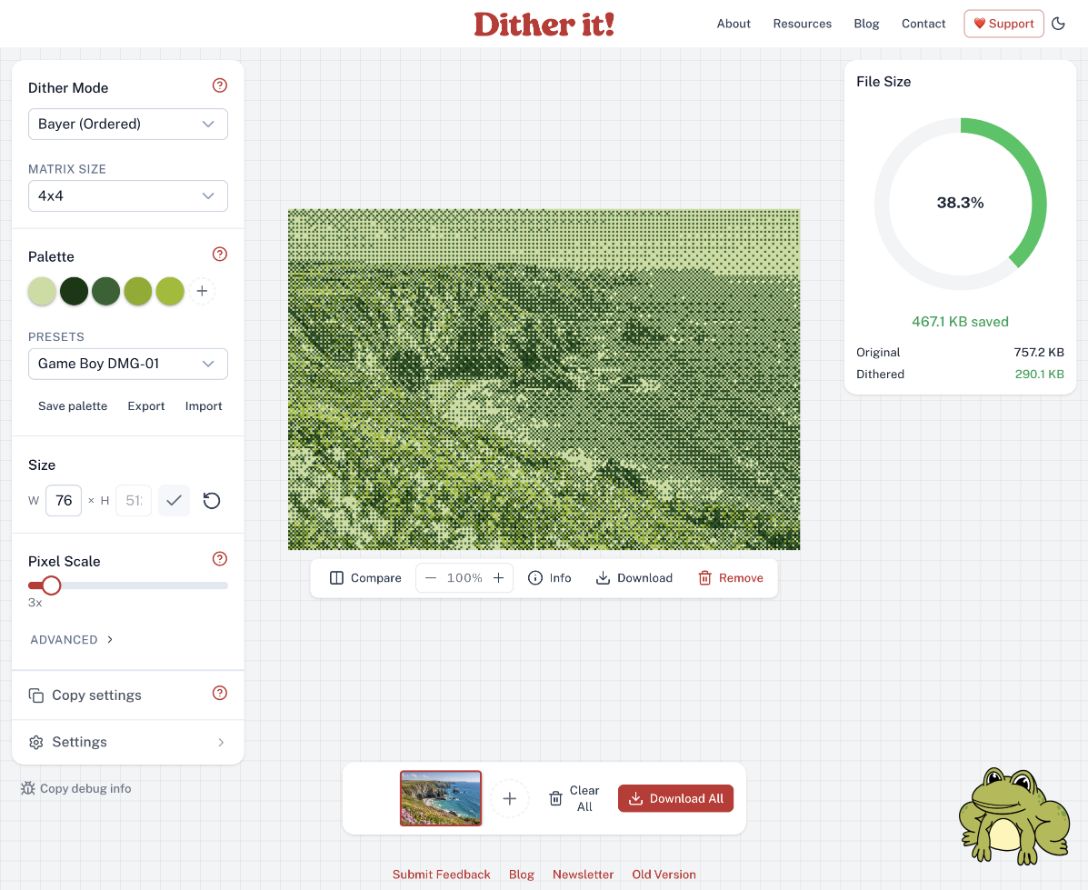
Dither it showing a green coastal image with Bayer 4x4, Game Boy DMG-01, width 768, and Pixel Scale 3x.
The retro postcard recipe in the live editor. Use the sample photo to follow along with the same settings.View full size ↗ (opens in a new tab)
04

Take your favorite with you.

Under Size, enter a width in W and choose the checkmark, Apply size. The height follows the image’s proportions. In our example, 768 pixels wide becomes 512 pixels tall.

Choose Download directly beneath the preview. The still-image menu offers PNG, JPG, and SVG. Start with PNG to preserve crisp pixel edges; check the file in the app where you plan to use it.

Watch: set the size and find the export11 SEC · SILENT
Recorded in Dither it. Enable captions for the steps.Download video ↓
Read the walkthrough

With the Game Boy palette and Bayer pattern already selected, change W from 1536 to 768. Choose Apply size; H becomes 512. Open Download beneath the preview to reveal PNG, JPG, and SVG. This clip shows the export menu; a separate PNG download was tested for the black-and-white example.

Want to inspect a real export? Download our 1536 × 1024 black-and-white PNG, saved directly from Dither it.

Common questions

Is Dither it free?

The site describes itself as a free online image dithering tool. The controls and PNG download shown here worked without signing in.

Why doesn’t mine look exactly like the example?

The source image, output size, palette, dither mode, algorithm or matrix size, and Pixel Scale all affect the result. Use the downloadable sample and the recipe above to follow the same starting point.

Why is my dithered file bigger?

A busy dot pattern can compress differently from the original photograph. Compare the estimated PNG and JPG sizes in Download and try a smaller output width if needed.

Does this work on a phone?

The editor has a compact layout with Mode, Palette, Image, and Settings tabs. These recordings show the desktop layout, where more controls are visible together.

KEEP MAKING THINGS

Your next creative rabbit hole.

Try generative art with PLAYGRND or explore seven graphic design styles.

Sources & capture notes

An independent toolandtea guide, tested in the live Dither it editor on October 19, 2026. Visit the official About page and Resources for more context. Controls may change.

Images and silent recordings show the actual tool. The coastal source is an AI-generated sample created for toolandtea. The black-and-white PNG was downloaded and checked at 1536 × 1024; the green postcard is a crop of the editor preview. Recordings have English captions and text walkthroughs, and play only when you choose.