
Find a starting point.
Open the index and choose a kind: Backgrounds, Badges, Patterns, Posters, or Textures. Use Filter to search by name, or choose Random for a surprise.
For this walkthrough, type Vein and press Enter to open the first match. On the index, Esc clears the filter. Each tool has its own controls, so the steps below refer specifically to Vein.
Read the walkthrough
Start on the PLAYGRND index. Type vein into Filter. The list narrows to Vein. Press Enter to open the editor.
A few tweaks. A different feeling.
Choose New variation to generate another composition. Then change one control at a time. In Vein, Pour contains Flow, Scale, Curve, Levels, and Stripes. Try moving Scale and watch the shapes change.
Under Color, choose New colors for another palette or Rotate to rearrange it. Select a Frame before your final adjustments: 1:1 for a square, 4:5 for a portrait, or 16:9 for a wide composition.
Read the walkthrough
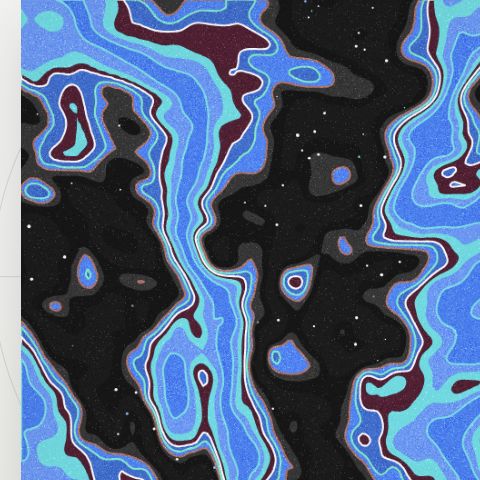
Choose New variation. Move Scale to 100%. Choose New colors to generate a new palette. Select the 1:1 frame. The result becomes a square composition. Your random variation and colors will differ.
Save the version you love.
Open Export at the lower right of the desktop editor. Set Size, then choose PNG for an image or SVG for vector output. With the square frame and Size at 2400 px, Vein reports a 2400 × 2400 PNG.
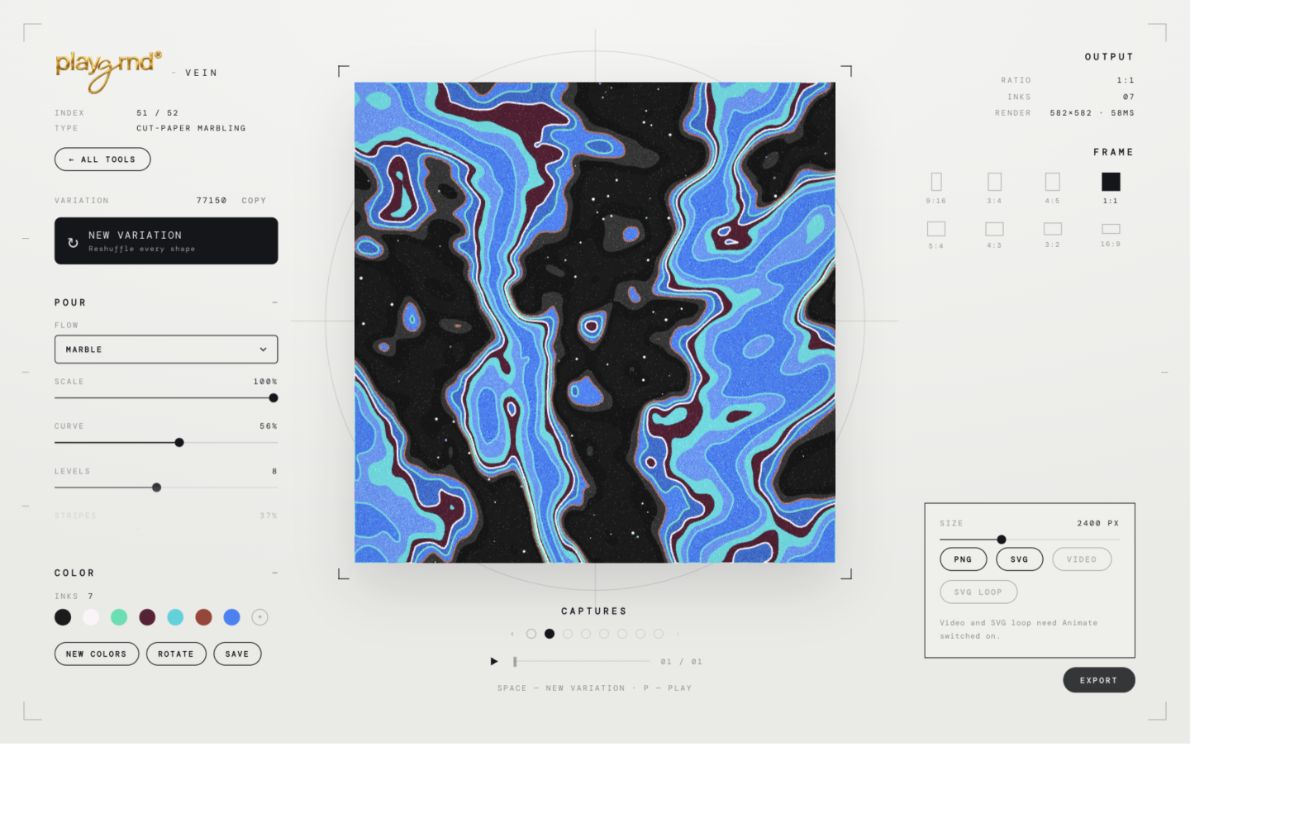
Export a favorite before trying more variations or leaving the page. The Save control inside Color is not the artwork export button.
Give it a little movement.
Switch on Animate in Vein’s settings. Adjust Amount, Speed, and Loop length to explore the motion. On a smaller screen, scroll through the settings to reach these controls.
Open Export again. Video and SVG loop become available when Animate is on. The recording below shows where to find them; still-image exports are the quickest way to start.
Read the walkthrough
Switch on Animate. The artwork begins moving and Amount, Speed, and Loop length appear. Open Export. Video and SVG loop are now enabled. This walkthrough shows the export choices, not a completed video download.